How to Ensure That the Calendar Machine Is Always Kept Up to Date?
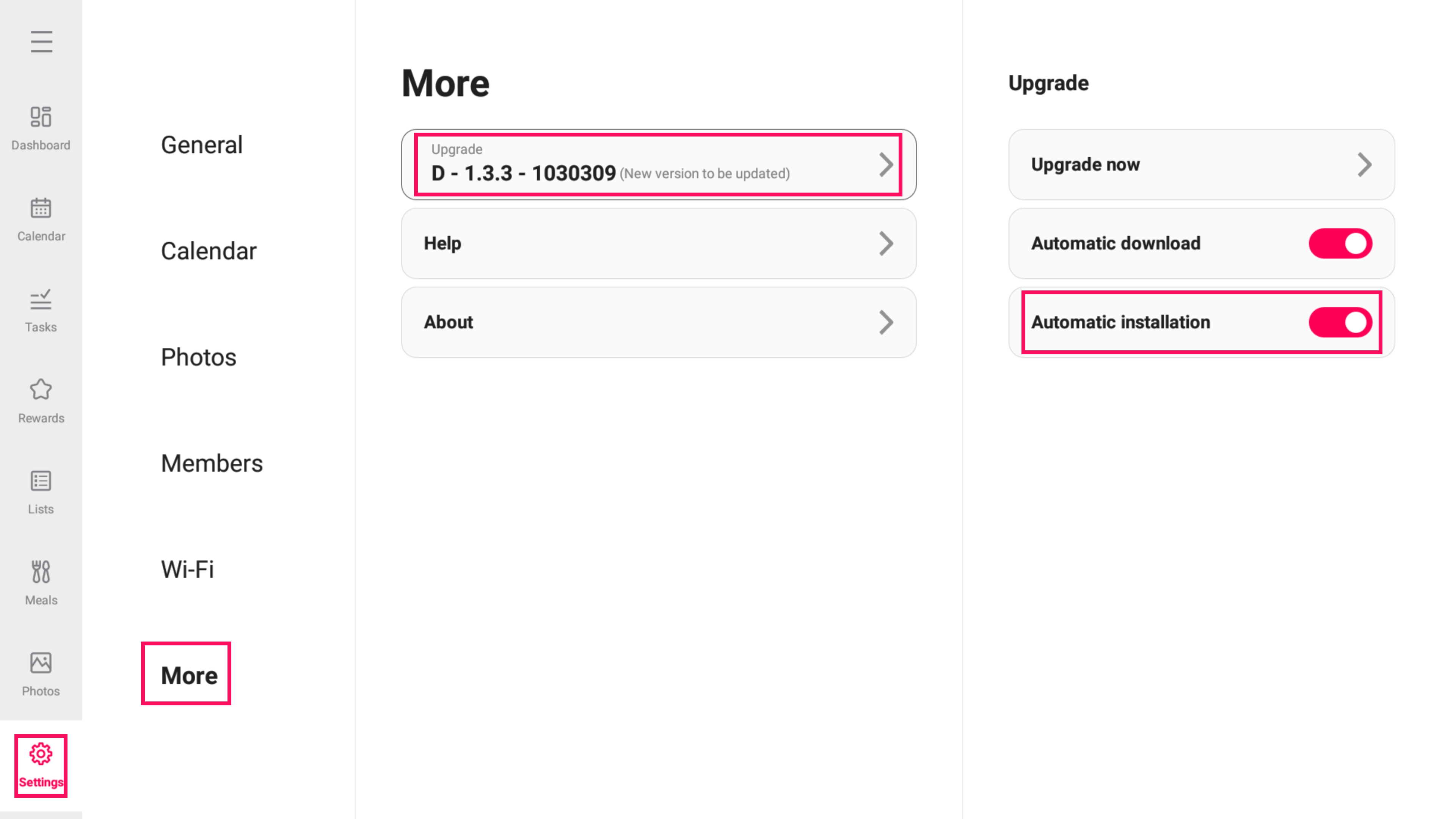
If you want the calendar machine to be automatically updated to the latest version, you can follow the steps below to make the settings:
- Click on "Settings" - "More" - "Upgrade";
- Enable the "Automatic installation" function.
Once enabled, the system will automatically detect and install updates to ensure that your calendar machine is always kept up to date without the need for manual operations.
How to Manually Update to the Latest Version?
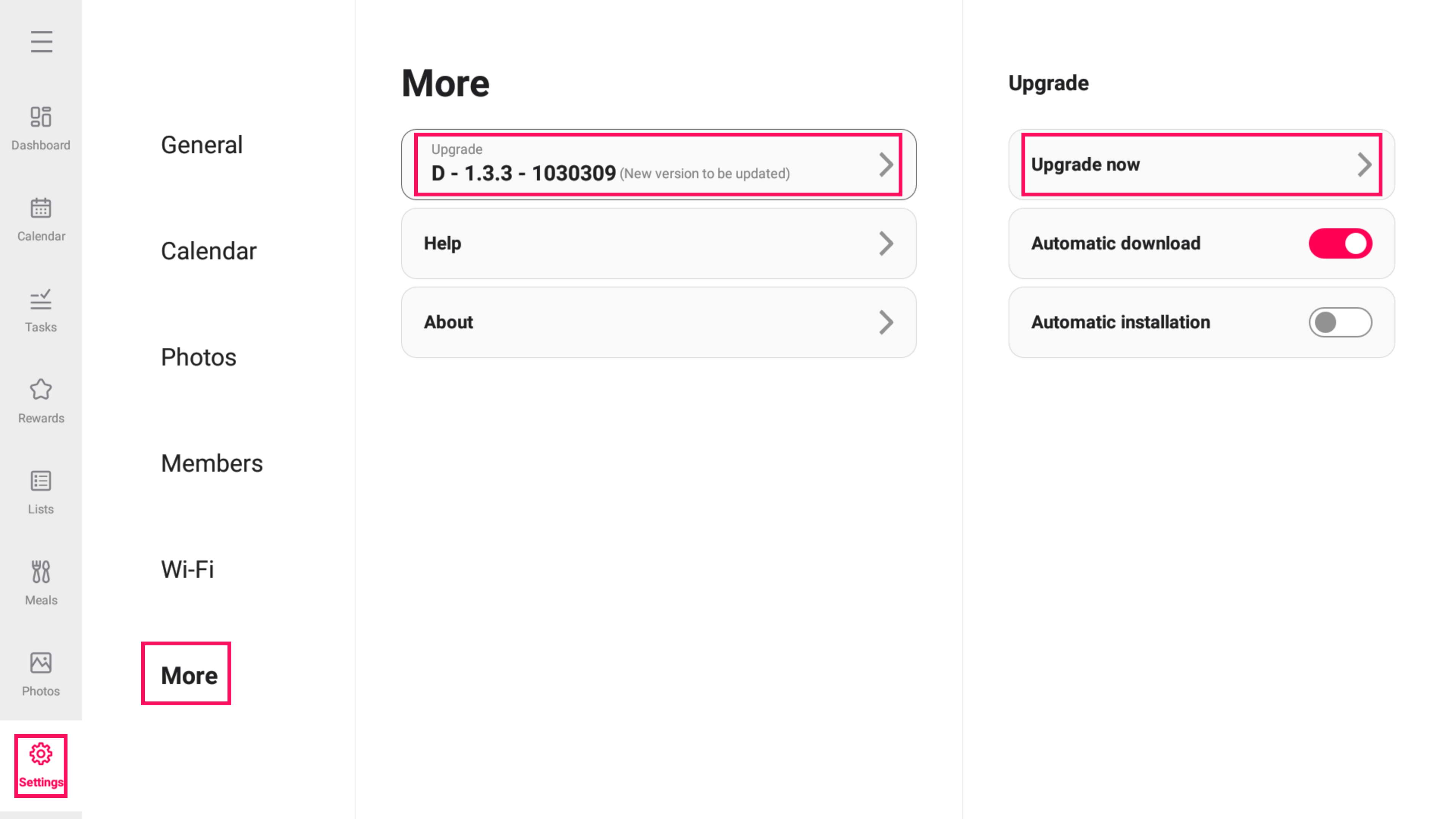
If you don't want to enable the auto-install function, you can also update it manually:
- Click on "Settings" - "More" - "Upgrade";
- Click on the "Upgrade now" option;
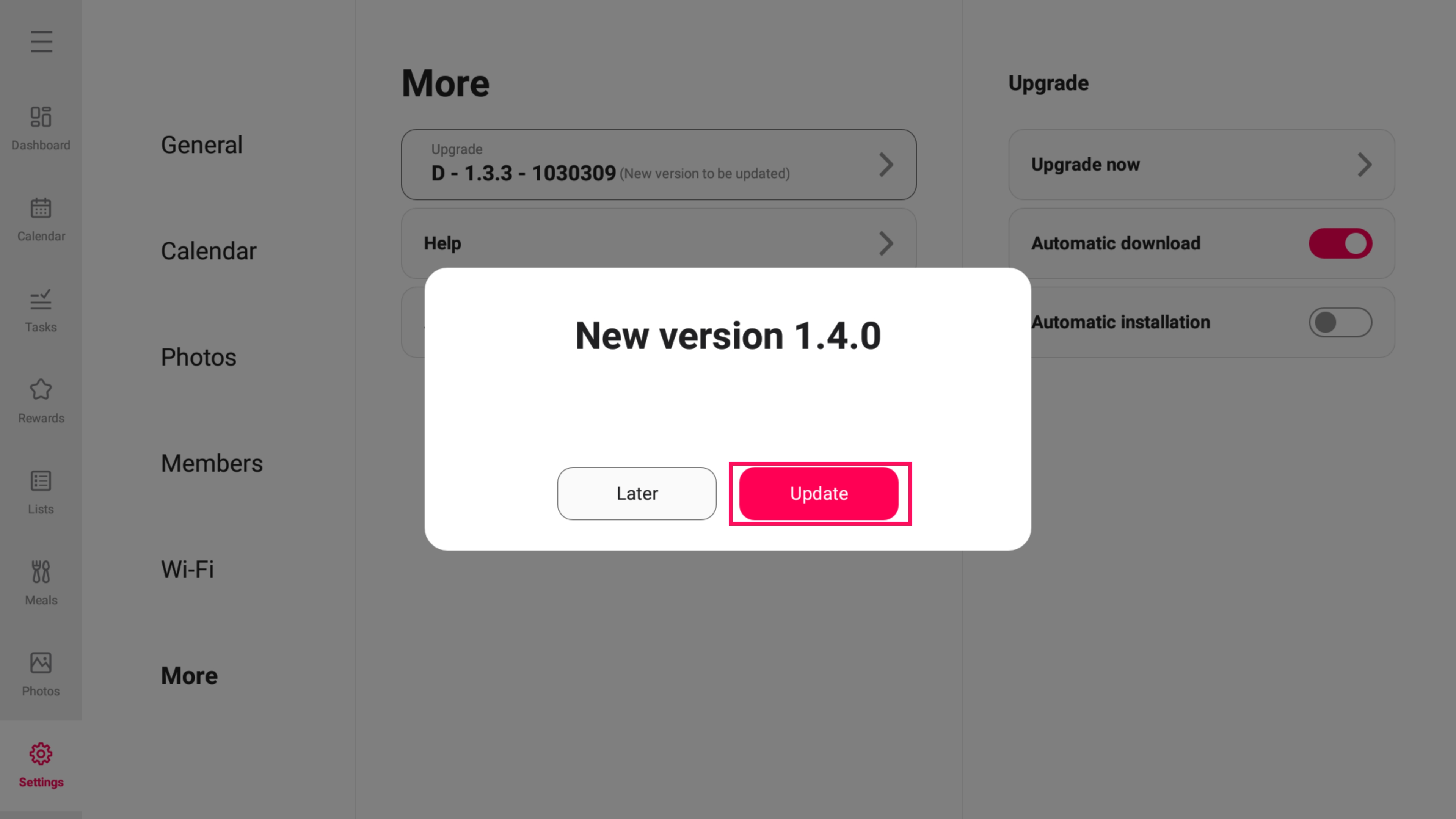
- Follow the prompts of the system to click "Update" and complete the installation.
After that, the calendar machine will be successfully updated to the latest version.
How to Confirm That the Calendar Machine Has Been Updated to the Latest Version?
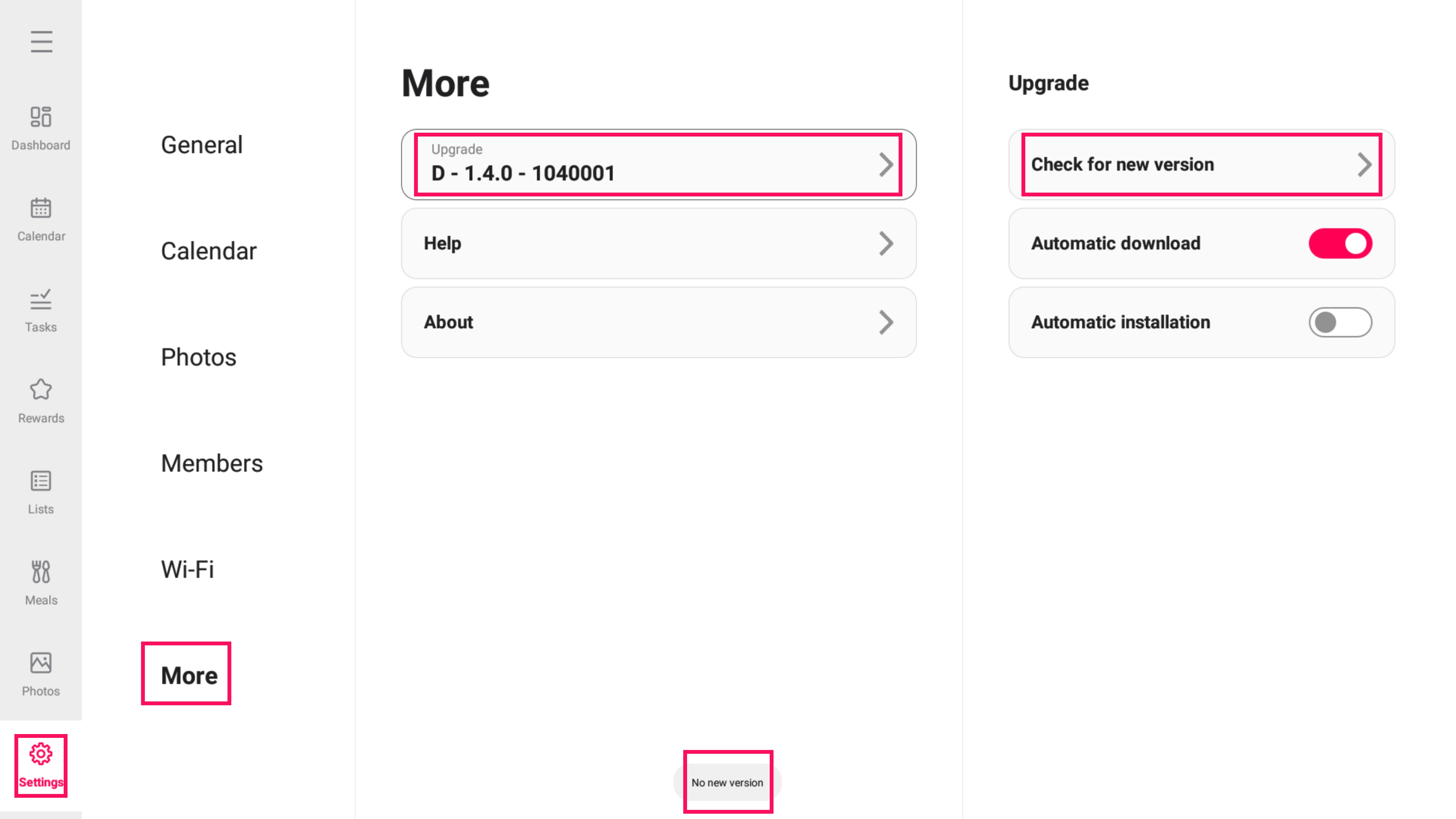
You can confirm whether the calendar machine has been updated to the latest version through the following operations:
- Click on "Settings" - "More" - "Upgrade".
- Select "Check for new version".
When the system prompts that "No new version", it means that your calendar machine is currently already the latest version and you can use it with confidence.